

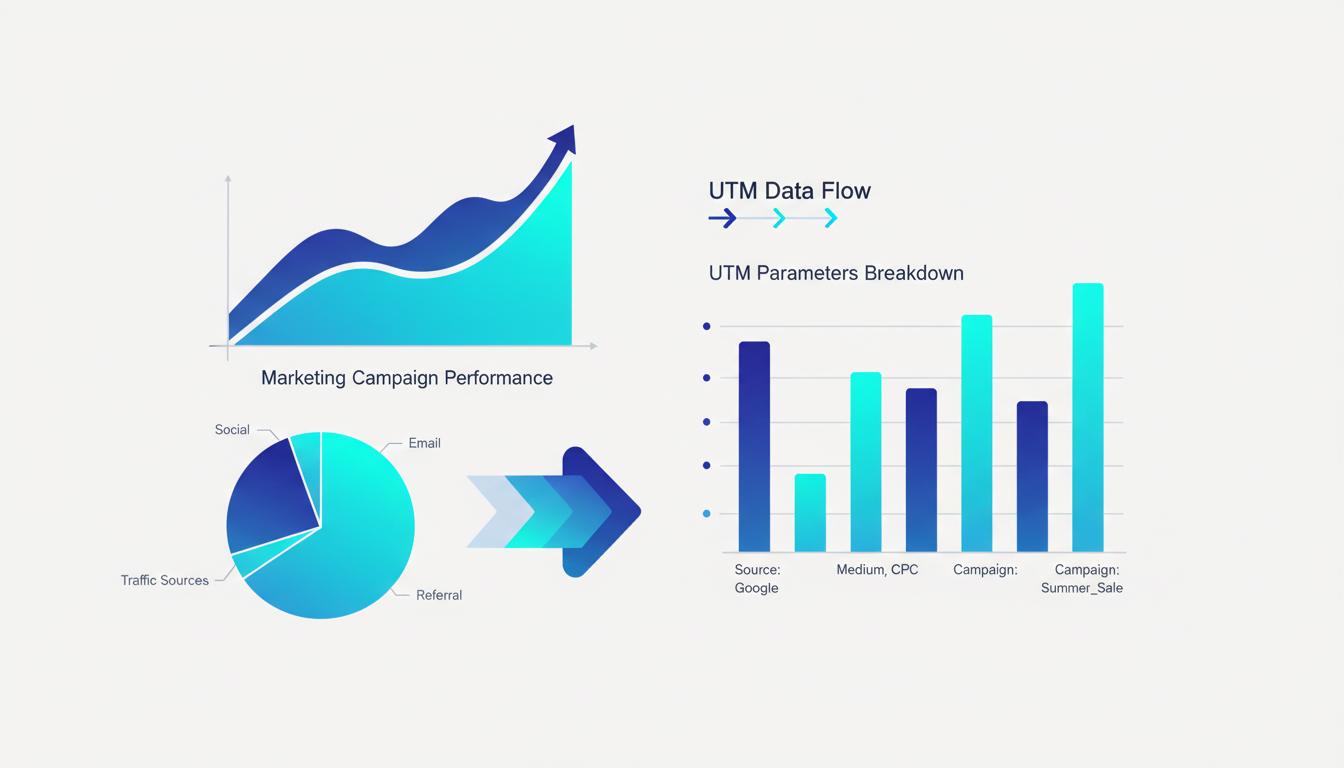
You can spend thousands on Meta Ads and still have no idea which campaign, ad set, or creative actually drove a sale�unless you use UTM parameters. These small but powerful URL tags are your link between Meta Ads Manager and Google Analytics, giving you crystal-clear attribution data that helps you spend smarter and scale what works.
Why UTM Parameters Matter for Meta Ads
Meta Ads Manager gives you excellent in-platform reporting: impressions, clicks, reach, cost per result. But it only tells you what happened inside Facebook and Instagram. The moment a user lands on your website, Meta's reporting ends. Google Analytics picks up the journey from there�but only if you tell it where that traffic came from.
Without UTM parameters, all your Meta Ads traffic shows up in Google Analytics as "Social" or worse, lumped into "Direct" traffic. You cannot see which campaign, which audience, or which creative drove conversions on your site. With UTMs, every click is tagged with rich metadata that flows directly into your analytics reports.
For any advertiser running Meta Ads seriously, UTM parameters are non-negotiable. They are the foundation of proper attribution and the only way to calculate true ROI from your ad spend.
Standard UTM Structure for Meta Ads
A UTM-tagged URL consists of five possible parameters appended to your destination URL. For Meta Ads, the most commonly used are source, medium, campaign, content, and term.
A typical Meta Ads URL looks like this:
https://yoursite.com/landing-page?utm_source=facebook&utm_medium=paid_social&utm_campaign=spring_sale_2026&utm_content=carousel_ad_v1&utm_term=lookalike_audience
Here is what each parameter means in a Meta Ads context:
- utm_source: The platform. Use
facebookorinstagramdepending on where the ad appears. If you run the same creative across both placements, some teams usemetato consolidate reporting. - utm_medium: The channel type.
paid_socialis standard for paid Meta placements. Some teams usecpcto align with Google Ads conventions. - utm_campaign: Your campaign name. This should match your campaign structure in Meta Ads Manager.
- utm_content: The specific ad creative or ad set. Use this to distinguish between different images, videos, or copy variations in the same campaign.
- utm_term: Optional for paid social. Some teams use it for audience segment names (e.g., retargeting, lookalike, interest-based).
Naming Conventions Best Practices
The biggest mistake most advertisers make with UTMs is inconsistent naming. If one campaign uses "Facebook" and another uses "facebook" and another uses "FB," Google Analytics will treat these as three separate sources. Your data becomes fragmented and unreliable.
Establish a clear naming convention before you launch your first campaign and document it for your entire team. Here are the core rules:
Always use lowercase. UTM parameters are case-sensitive. "Facebook" and "facebook" are different values in Google Analytics. Standardize on all lowercase across all campaigns.
Use underscores instead of spaces. Spaces get URL-encoded as %20 and can cause readability issues in reports. Use underscores or hyphens consistently. Example: spring_sale_2026 not spring sale 2026.
Include dates in campaign names. Adding the month and year to campaign names makes it much easier to filter and compare performance over time. spring_sale_mar2026 is far more useful than just spring_sale.
Use a campaign naming template. A good format is: [product]-[objective]-[audience]-[month][year]. For example: shoes-conversions-lookalike-mar2026. This structure gives you instant context when reading analytics reports.
Setting Up UTM Parameters in Meta Ads Manager
Meta provides two ways to add UTM parameters to your ads: manually or using Meta's dynamic URL parameters.
Manual UTM tagging means you build the complete URL with all UTM parameters before entering it as your ad destination URL. This gives you full control over naming but requires careful copy-pasting for each ad.
To add UTMs manually in Meta Ads Manager, go to the ad level, scroll to "Destination," paste your UTM-tagged URL in the website URL field, and verify it with the URL preview. The UTM Builder tool at InstantLinkHub can help you construct these URLs accurately every time.
Dynamic URL parameters use Meta's own variables that auto-populate with campaign data. In the "URL Parameters" field at the ad set or ad level, you can enter something like:
utm_source=facebook&utm_medium=paid_social&utm_campaign={{campaign.name}}&utm_content={{ad.name}}
The double-bracket syntax pulls the actual campaign and ad names from Meta automatically. This is a powerful time-saver for large accounts with many campaigns. The downside is that campaign and ad names from Meta are used as-is, so you still need good naming conventions on the Meta side.
Tracking Results in Google Analytics
Once your UTM-tagged ads are live, your data will start populating in Google Analytics within hours. Here is where to find it:
In Google Analytics 4, go to Reports ? Acquisition ? Traffic Acquisition. Change the primary dimension to "Session source / medium" or "Session campaign" to see your Meta Ads data segmented by UTM values. You can then add secondary dimensions and apply filters to drill down by campaign, content, or any other UTM parameter.
For conversion tracking, navigate to Reports ? Engagement ? Conversions and use the campaign dimensions to see which Meta Ads campaigns drove the most goals. You can also build custom explorations in the Explore section to create multi-dimensional reports that combine UTM source, campaign, content, and conversion data in a single view.
Common Mistakes to Avoid
Even experienced advertisers make these errors. Being aware of them can save you weeks of bad data.
Double-tagging with Meta and UTMs simultaneously. Meta's automatic URL tagging (the "fbclid" parameter) and your manual UTMs can sometimes conflict in attribution. In GA4, UTMs take precedence, but it is worth reviewing your settings to make sure you are not seeing duplicated or misattributed sessions.
Forgetting to tag all ad variations. If you have an A/B test running and only one variant has UTMs, your analytics data will be incomplete. Create a checklist to verify every ad in every campaign is tagged before launch.
Using special characters in UTM values. Ampersands, question marks, and hash symbols will break your URL. Always URL-encode these characters or use a UTM builder that handles encoding automatically.
Not tagging retargeting campaigns differently. Lumping retargeting and cold traffic into the same UTM campaign makes it impossible to compare performance across audience types. Always use distinct campaign or term values for different audience tiers.
Build Your UTM Links for Free
Use our UTM Builder to create perfectly formatted tracking links for all your Meta Ads campaigns�no signup required.
Explore Our Tools ?